On this page
Most distance sensors give you just one number. But what if you could actually see the shape of the objects in front of the sensor?
That’s what I wanted to explore with STMicroelectronics’ new VL53L9CX 3D LiDAR sensor. It provides a 54 × 42 grid (2,268 distance zones), with a nominal 55° × 42° field of view. ST specifies ranging from less than 5 cm up to 8.8 metres, with frame rates up to 100 Hz under supported operating conditions.
For this project, I used RemiFM’s compact six-layer USB-LiDAR PCB and worked on firmware improvements, Arduino UNO Q integration, and the native LiDAR Dashboard.
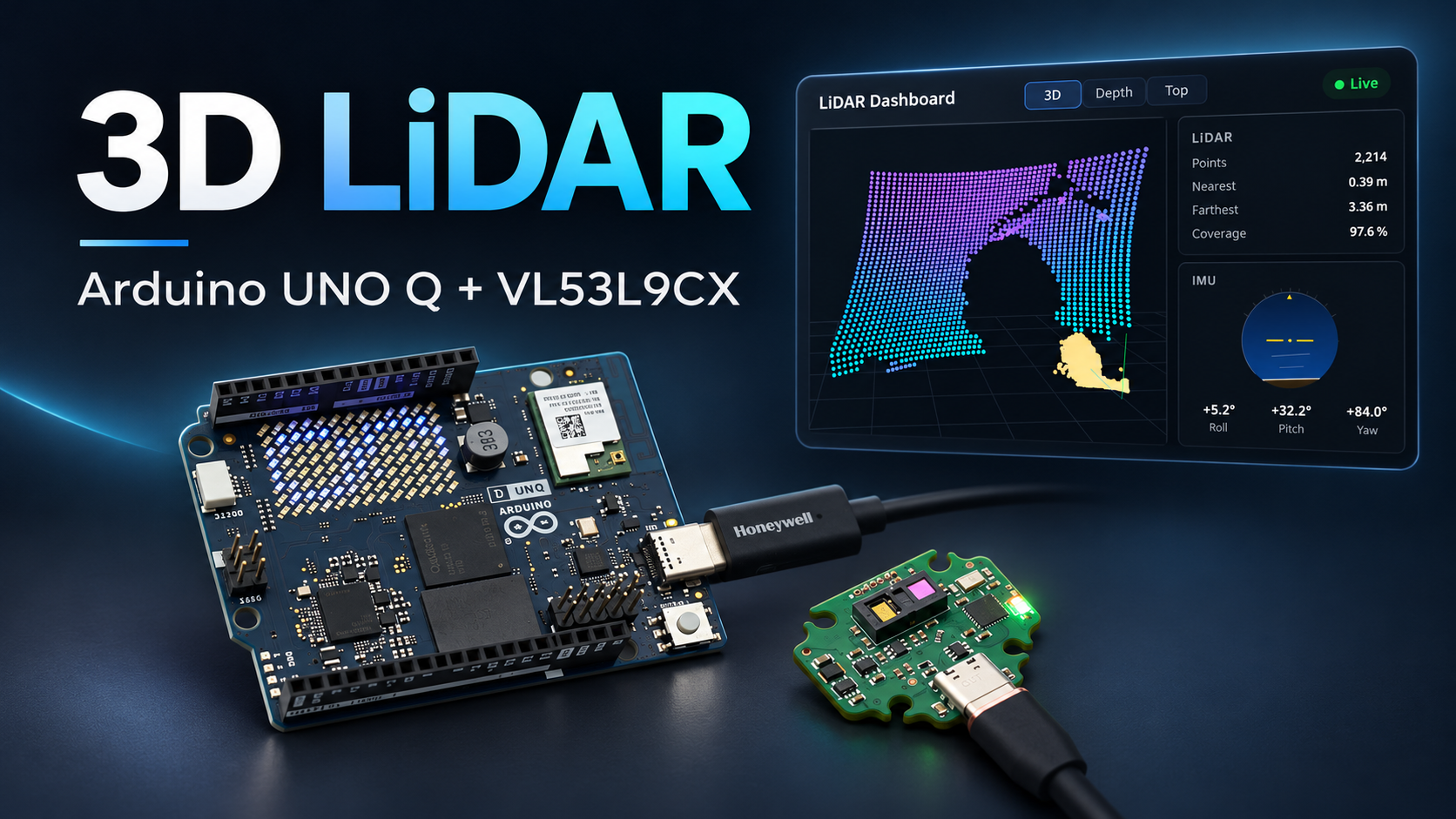
The Arduino UNO Q receives the sensor data over USB and processes it using ST’s calibration library. I also developed a native Python/GTK dashboard to visualize the live 3D point cloud, 2D depth image, top-down view, and IMU readings.
In my tested configuration, the system delivers approximately 35–36 received frames per second. Seeing everyday objects take shape in 3D using just 2,268 measurement zones is pretty interesting, especially for robotics and spatial sensing experiments.
Supplies
For this project, you’ll need an assembled LiDAR PCB, an Arduino UNO Q, and a few tools for programming and testing.
| Component | Purpose |
|---|---|
| VL53L9CX LiDAR sensor | Captures the 54 × 42 depth grid |
| STM32C552KEU6 | Handles sensor communication and USB transfer |
| ST LSM6DSV 6-axis IMU | Measures acceleration and rotation |
| RemiFM’s custom 6-layer PCB | Holds the sensor, controller, and supporting circuits |
| Arduino UNO Q | Runs sensor processing and the native LiDAR dashboard |
| Powered USB-C hub/dongle | Provides the supported USB host and power connection |
| USB data cable | Connects the LiDAR PCB |
| ST-Link programmer | Programs the STM32 |
| Multimeter | Checks power rails and connections |
| Linux laptop | Installs the UNO Q software and optionally runs the GPU viewer |
The complete PCB design and BOM are included in the project files. If you’re manufacturing another board, check the component part numbers and footprints carefully, particularly the IMU variant.
I’ve uploaded the complete project to GitHub, including the PCB design files, STM32 firmware, native LiDAR Dashboard, and Arduino UNO Q setup instructions. You can download everything if you’d like to build your own version or experiment with the code.
Step 1: Understand How the System Works
Before getting started, here’s a quick look at how everything works together.
The VL53L9CX communicates with the STM32C552 over high-speed I3C, while the IMU uses SPI. The STM32 collects the measurements and sends them over USB to the Arduino UNO Q.
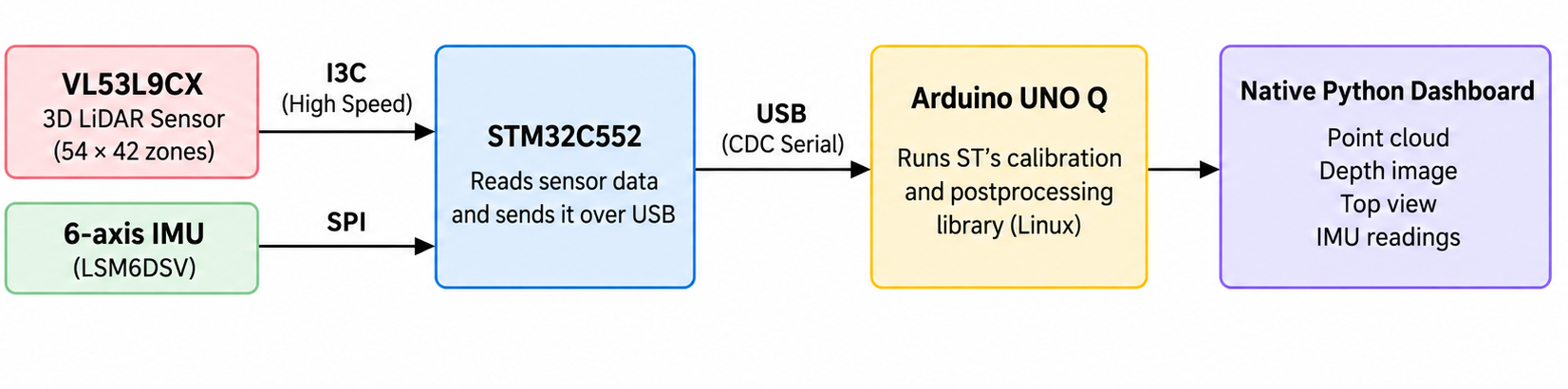
The UNO Q’s Linux system runs ST’s calibration and postprocessing library, while a native Python dashboard displays the point cloud, depth image, top view, and IMU readings.
The VL53L9CX uses direct Time-of-Flight (dToF) technology, sending infrared light and measuring its return time to calculate distance. Unlike a rotating LiDAR scanner, it measures an entire grid of zones.
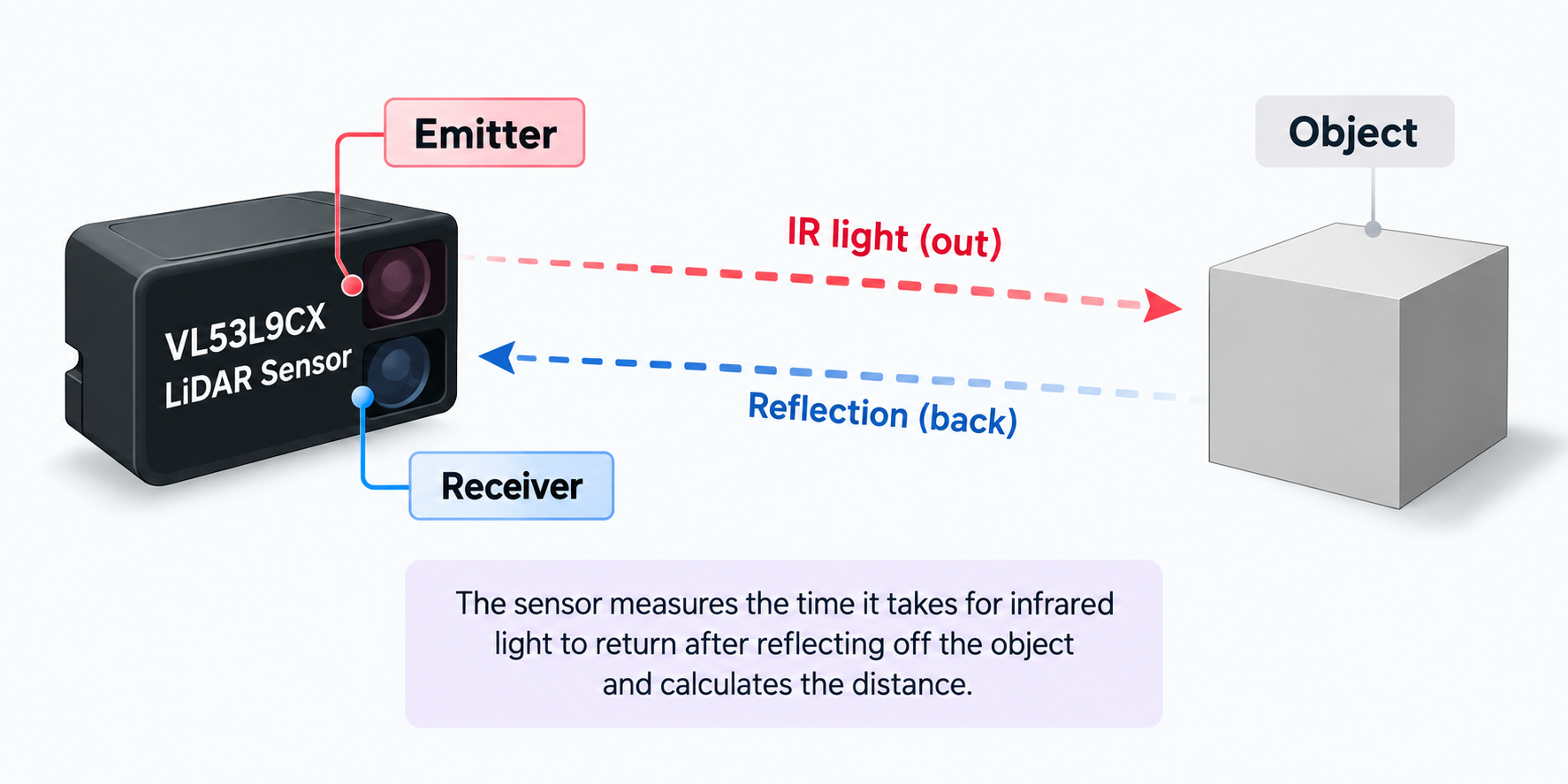
One important detail is that the sensor isn’t wired directly to the UNO Q’s GPIO pins. The STM32 handles the high-speed sensor communication, while the UNO Q takes care of processing and visualization.
Step 2: Understanding the LiDAR PCB
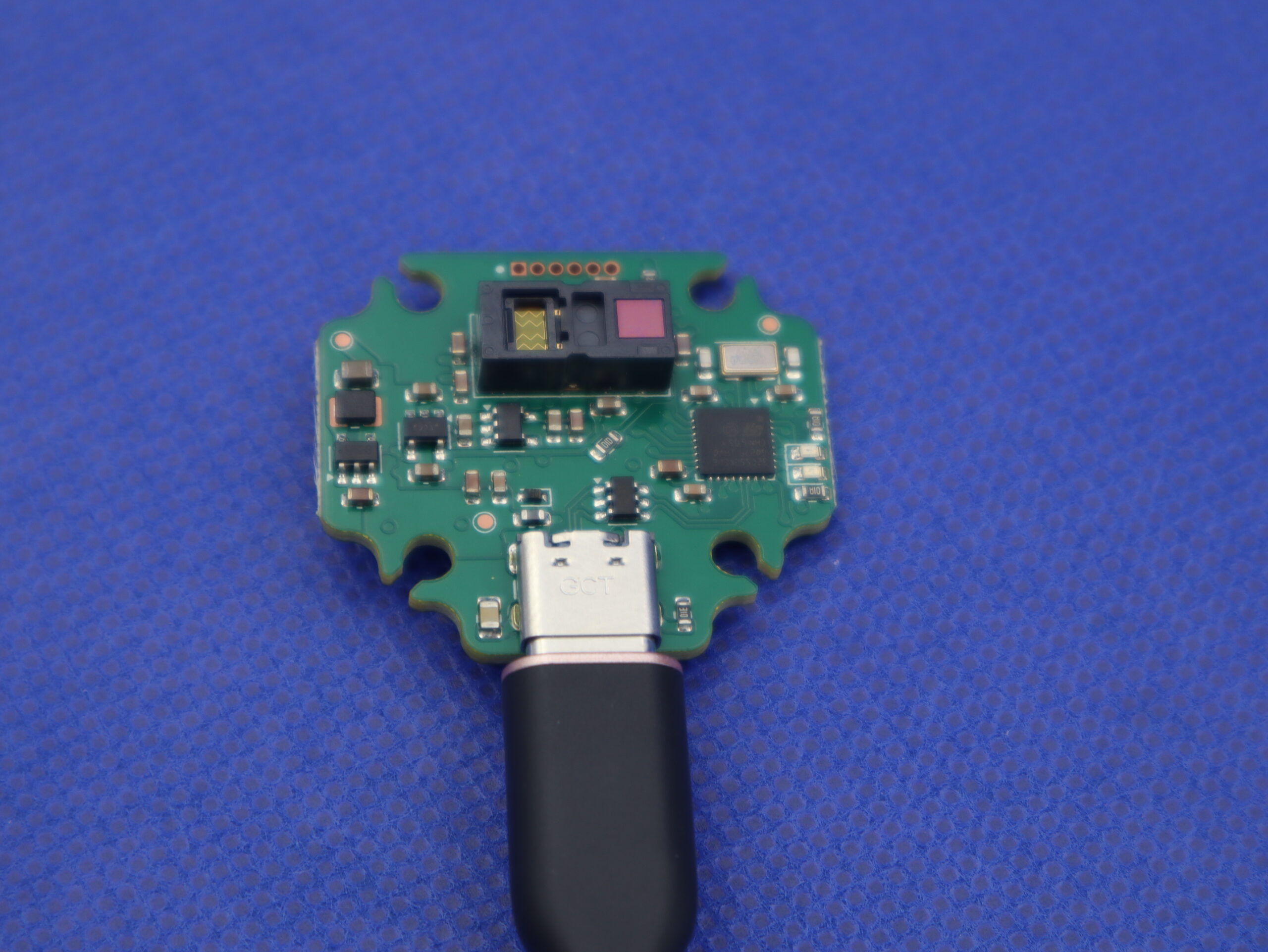
For this project, I used RemiFM’s compact six-layer USB-LiDAR PCB, measuring approximately 34 × 30.2 mm, with a thickness of 1.6 mm.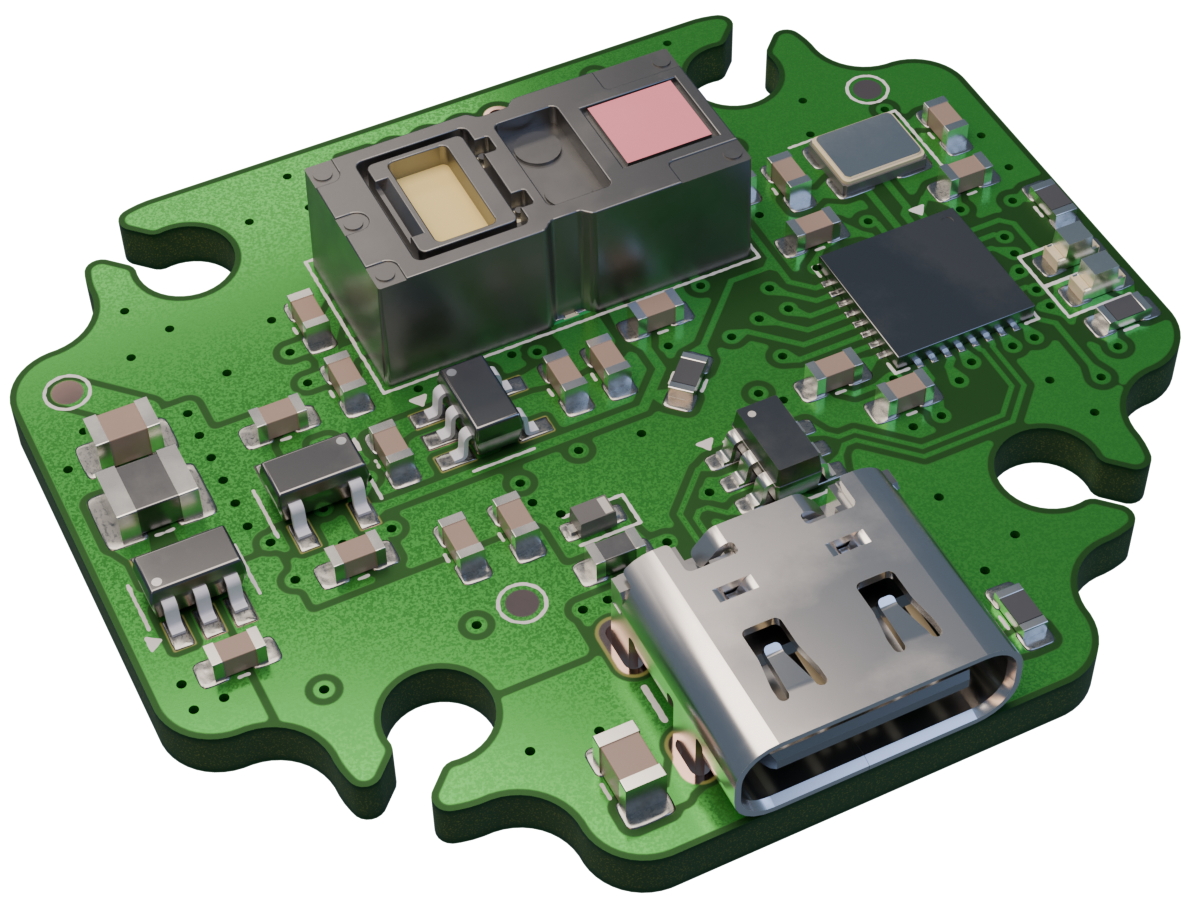
The board combines the VL53L9CX 3D LiDAR sensor, STM32C552 microcontroller, LSM6DSV six-axis IMU, USB-C interface, voltage regulators, and logic-level translators.
You can find the original hardware design on RemiFM’s GitHub. The KiCad project is available at:
Let’s take a quick look at the main sections of the circuit.
1. Overall Circuit Schematic
The main schematic gives an overview of how the different parts of the LiDAR board are connected.
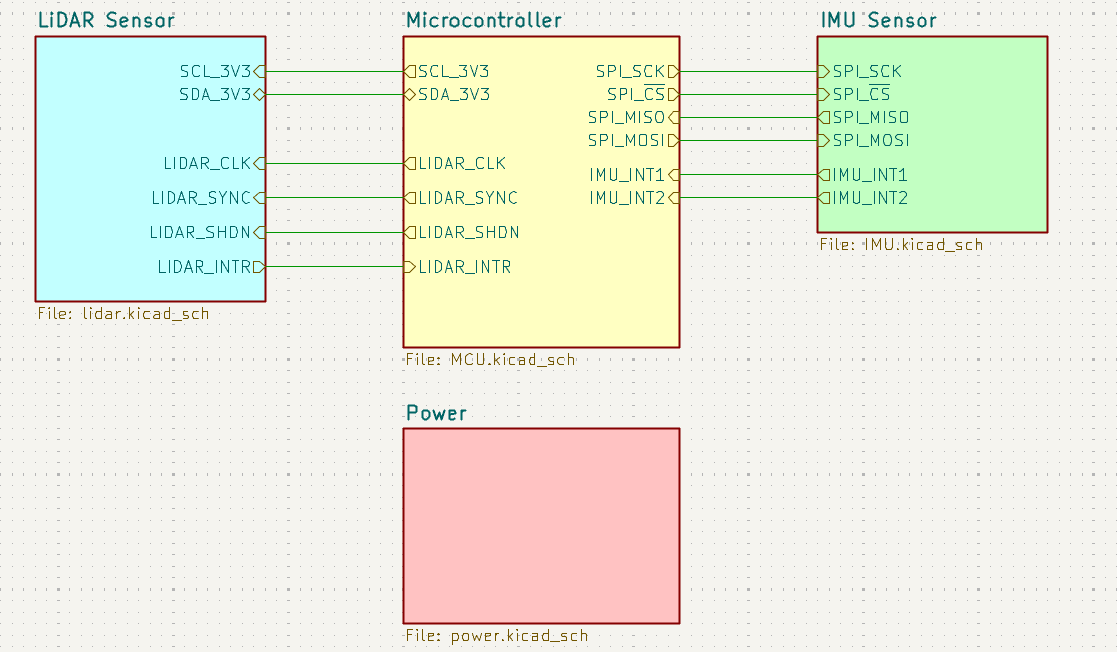
The design is divided into four sections: LiDAR sensor, STM32 microcontroller, IMU, and power supply.
The STM32 communicates with the LiDAR over I3C and the IMU over SPI. It then sends the collected measurements to the Arduino UNO Q through USB.
2. Power Supply Circuit
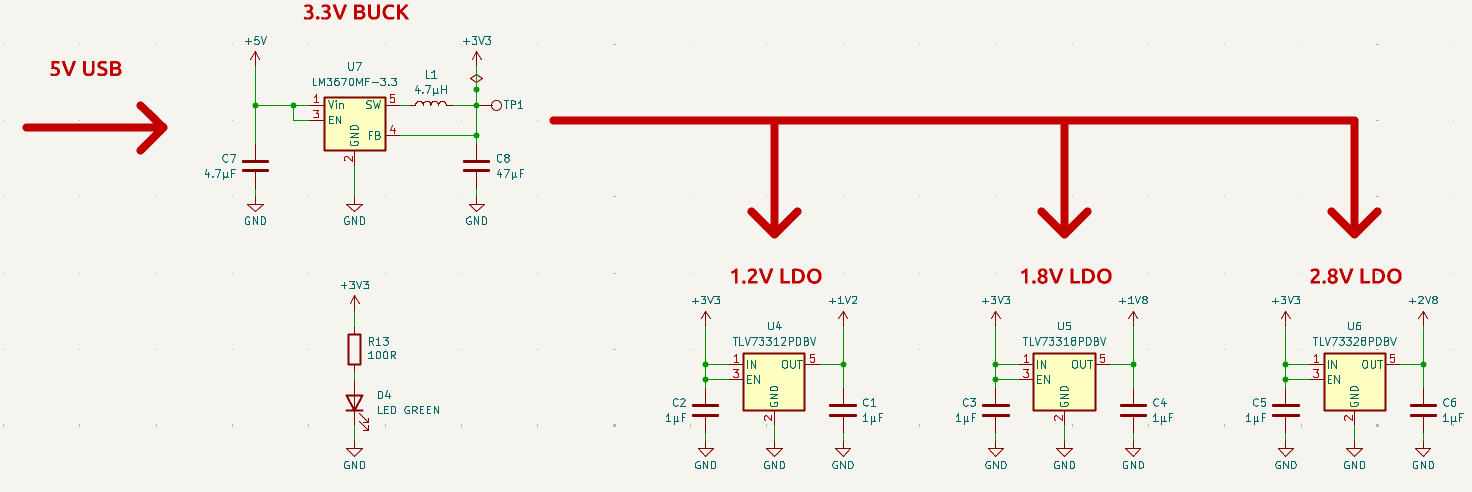
The LiDAR PCB receives 5 V from the USB-C connector. Since the different components require different voltages, the design uses a buck converter and three low-dropout regulators.
The LM3670MF-3.3 buck converter first steps the USB voltage down to 3.3 V. Three TLV733 regulators then generate the additional voltage rails required by the LiDAR sensor.
| Voltage | Regulator | Purpose |
|---|---|---|
| 3.3 V | LM3670 | STM32, IMU, and supporting circuits |
| 1.2 V | TLV73312 | LiDAR digital core |
| 1.8 V | TLV73318 | LiDAR I/O |
| 2.8 V | TLV73328 | LiDAR analog supply |
The capacitors around the regulators help filter noise and keep the supplies stable. There’s also a green LED connected to the 3.3 V rail to indicate that power is available.
3. VL53L9CX LiDAR Sensor Circuit
The main component of the board is STMicroelectronics’ VL53L9CX direct Time-of-Flight sensor.
It measures a 54 × 42 grid, providing up to 2,268 distance zones in each frame.
The sensor communicates with the STM32 through its I3C interface, using SDA and SCL signals.
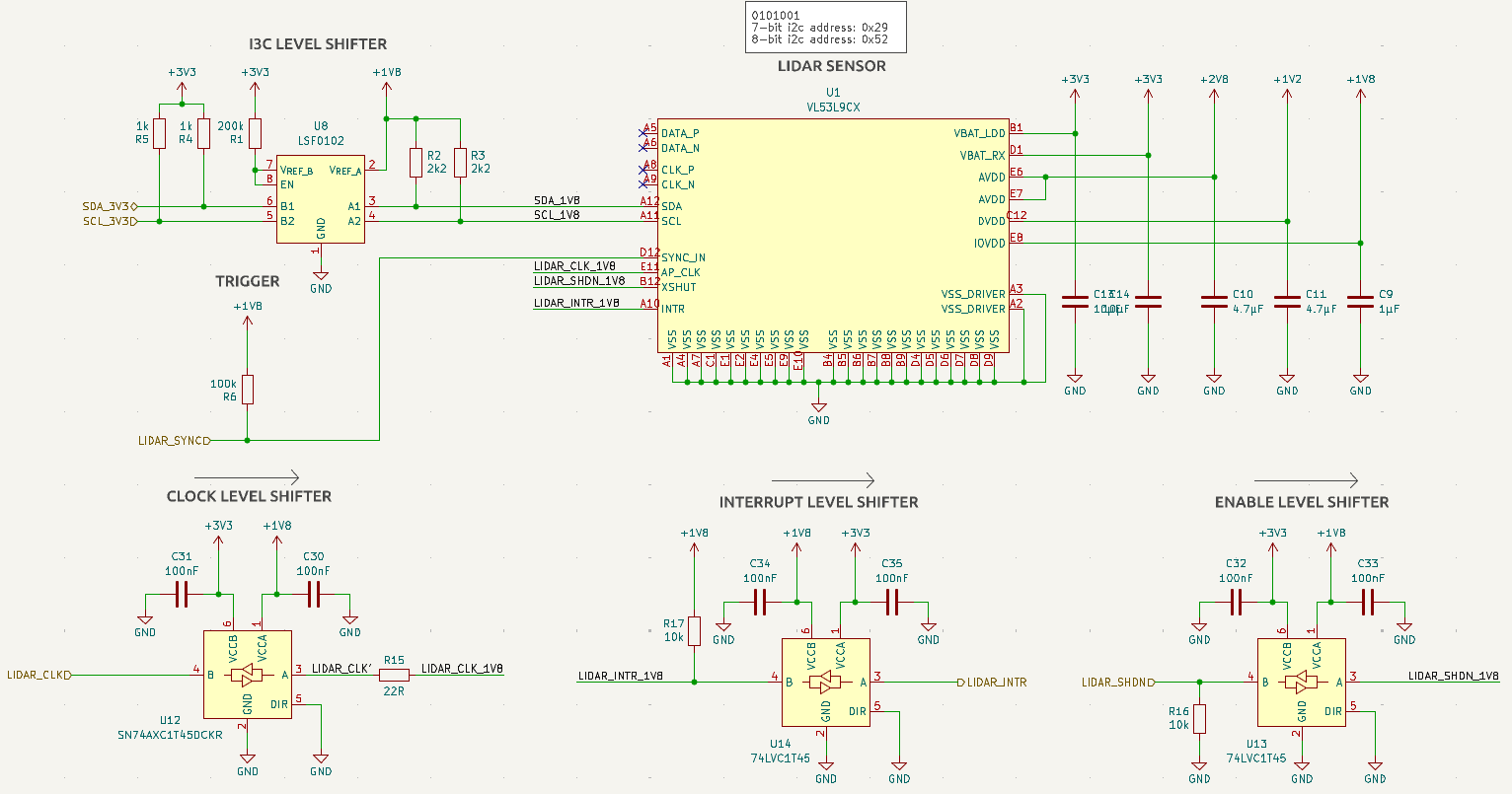
Because the STM32 operates at 3.3 V while the LiDAR interface uses 1.8 V, the circuit includes an LSF0102 logic-level translator for the I3C communication lines.
Additional level translators handle the sensor clock, shutdown, and interrupt signals.
The design also includes a SYNC connection, which the firmware drives using open-drain behavior to keep it compatible with the 1.8 V signal level.
Decoupling capacitors are placed around the sensor’s power pins to help maintain stable operation. The sensor also has high-speed differential interface pins, but this particular PCB uses I3C for reading the depth measurements.
For the sensor’s voltage and interface requirements, refer to the official VL53L9CX datasheet.
4. LSM6DSV Six-Axis IMU Circuit
Along with the LiDAR sensor, the board includes an LSM6DSV six-axis IMU to measure movement and orientation.
The IMU combines a three-axis accelerometer and a three-axis gyroscope. It also provides an internal temperature reading.
It communicates with the STM32 using SPI, through the SCK, MOSI, MISO, and chip-select connections. The interrupt signals are also connected to the microcontroller.
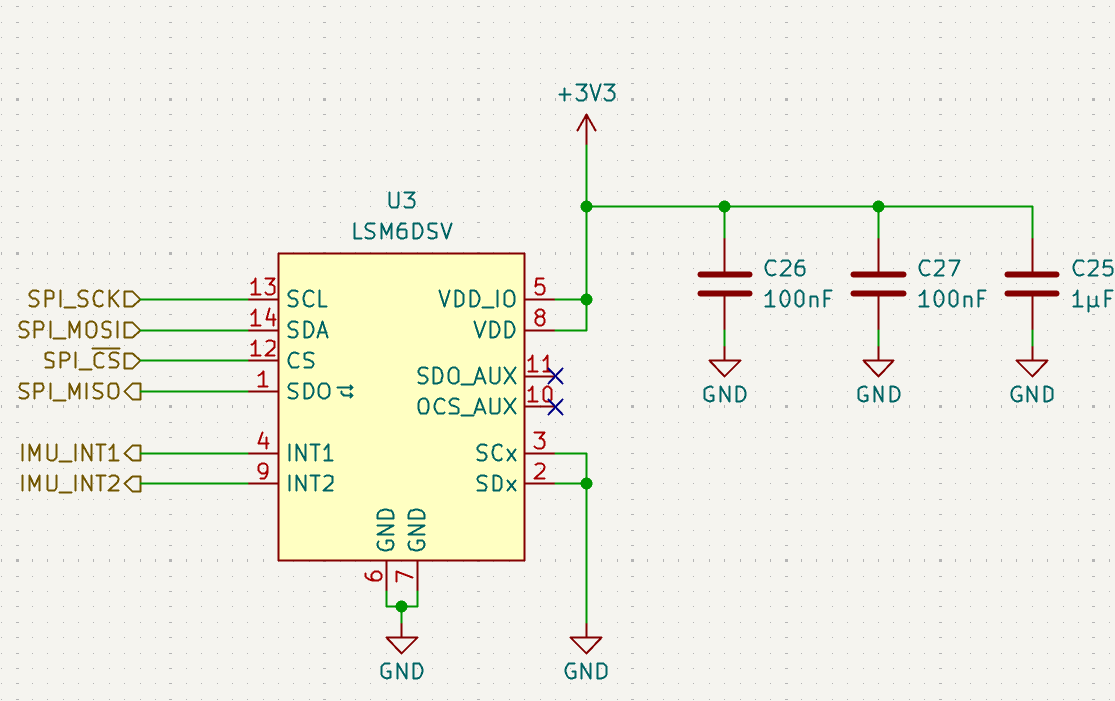
Both the sensor’s power supply and I/O supply use 3.3 V, with nearby 100 nF and 1 µF capacitors for decoupling.
One thing worth checking before assembling a new board is the IMU’s exact part number. The schematic and BOM have a variant mismatch that should be resolved against the firmware driver and the intended component.
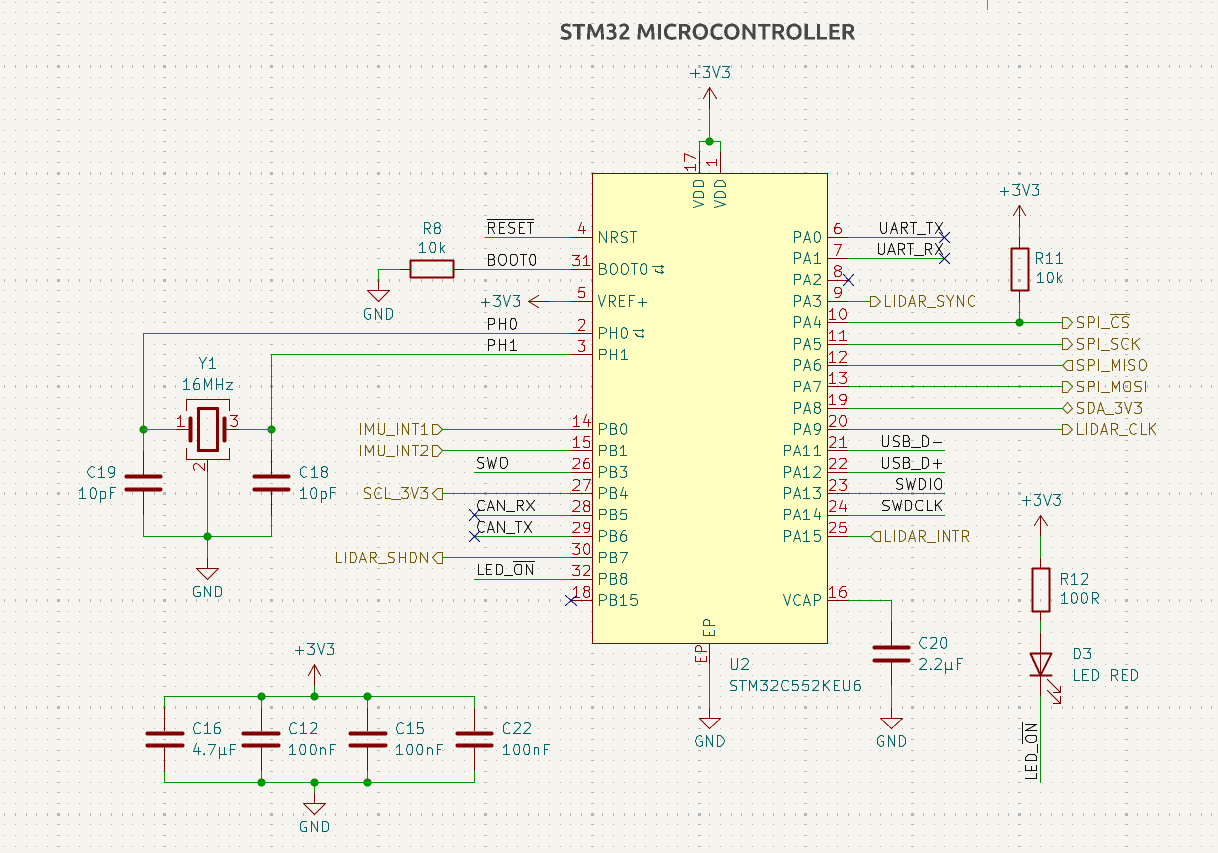
5. STM32C552 Microcontroller Circuit
The STM32C552KEU6 is the main controller on the LiDAR PCB. It handles the high-speed I3C communication, reads the IMU measurements over SPI, and transfers the data through USB.
The STM32 operates from the 3.3 V supply and uses an external 16 MHz crystal for its clock system.
The circuit also includes decoupling capacitors, reset and boot configuration components, and an LED for firmware status indication.
6. USB-C Power and Data Interface
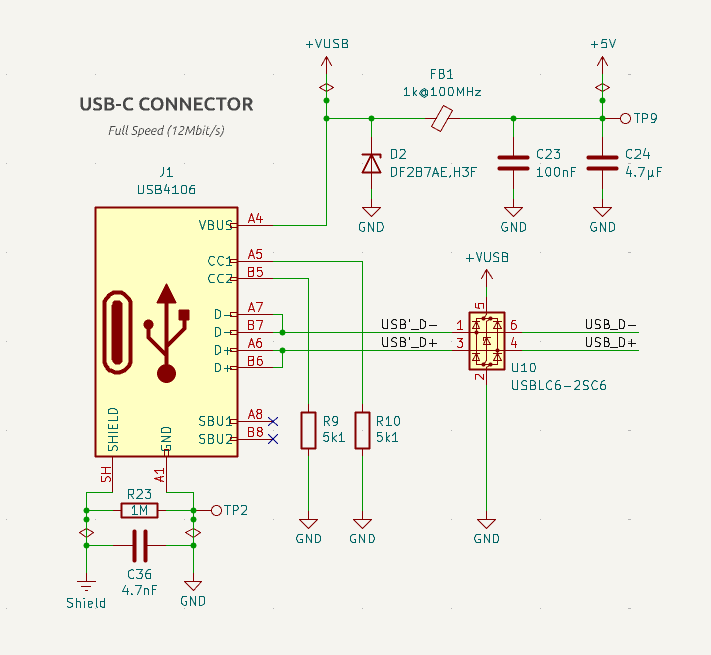
The PCB uses a USB-C connector (USB4106) for both power and data transfer.
Its VBUS connection provides the board’s 5 V input, while the USB D+ and D− signals connect to the STM32 through a USBLC6-2SC6 ESD protection device.
Both USB-C configuration-channel pins, CC1 and CC2, have 5.1 kΩ pull-down resistors, allowing the board to identify itself as a USB device and power sink.
The power input also includes protection and filtering components to help reduce noise and protect the circuit.
This board is powered directly through USB. It doesn’t include a battery charger or battery-power circuit.
7. SWD Programming Connector
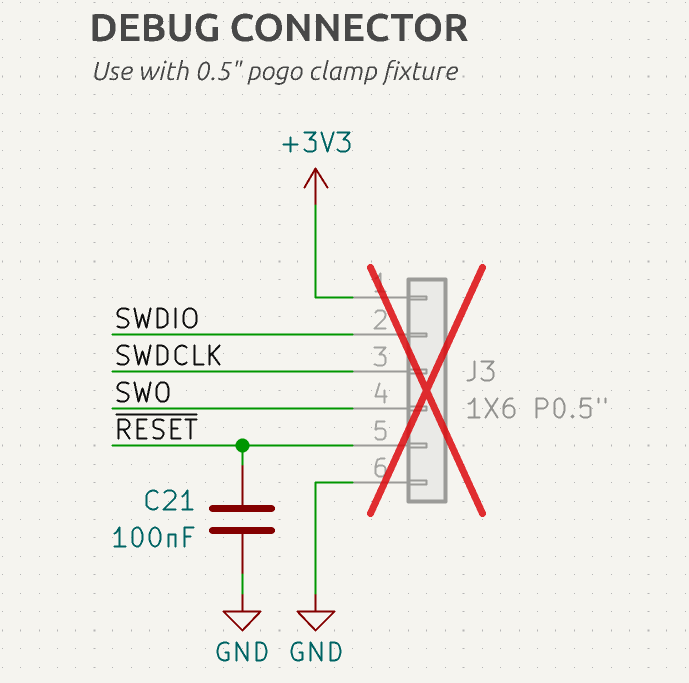
The PCB also includes a six-pin SWD programming connection (J3) for flashing and debugging the STM32 firmware.
The connections are:
| Pin | Signal |
|---|---|
| 1 | 3.3 V (VTref) |
| 2 | SWDIO |
| 3 | SWCLK |
| 4 | SWO |
| 5 | NRST |
| 6 | GND |
This connector can be used with an ST-Link programmer to upload firmware and recover the microcontroller if something goes wrong.
The connector footprint uses a 1.27 mm pitch and is marked as unpopulated in the BOM, so a suitable header or pogo-pin fixture is needed.
PCB Layout and 3D Preview
The PCB is designed with six copper layers to accommodate the sensor, controller, power supplies, and signal routing in a compact space.
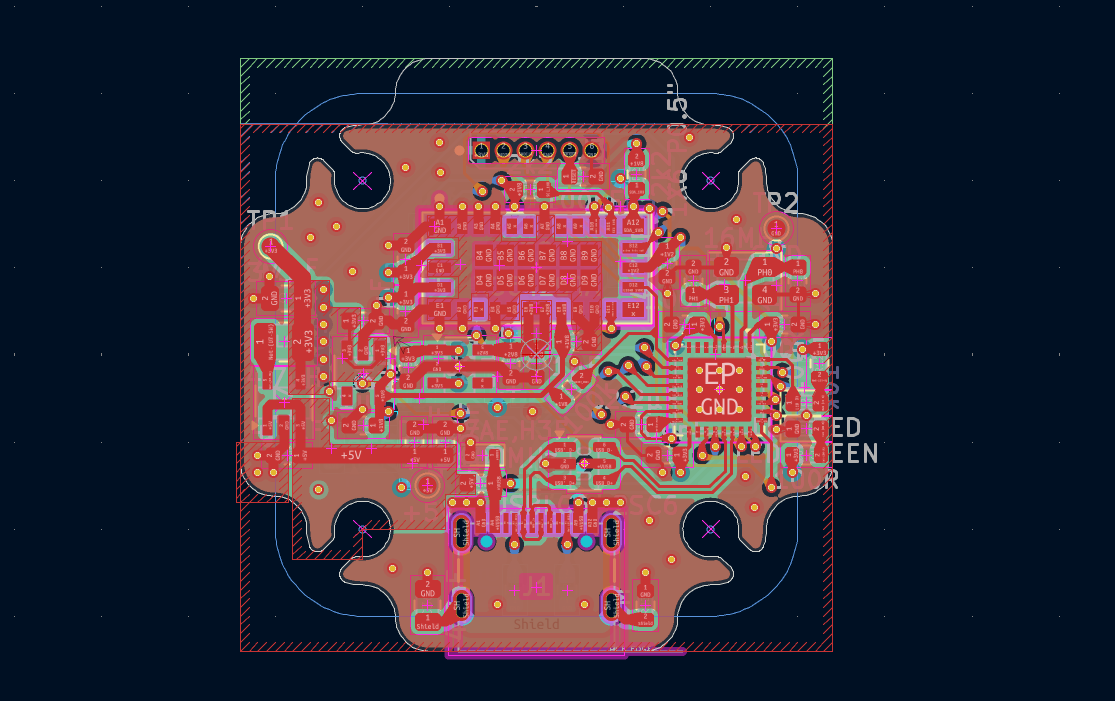
The 2D layout shows the component positions and PCB routing, while the 3D preview gives a better idea of how the assembled board will look.
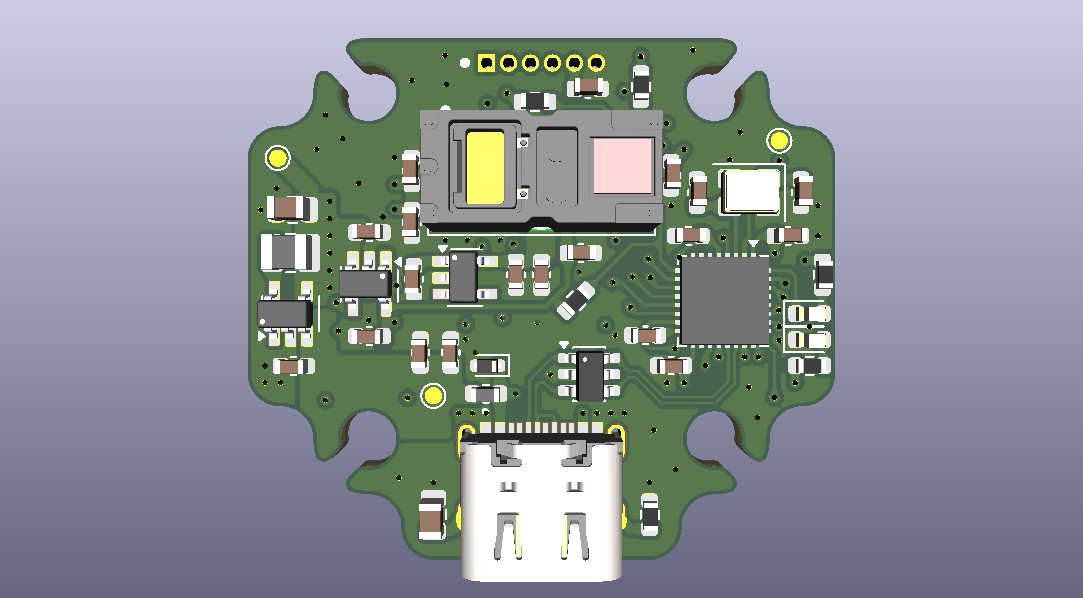
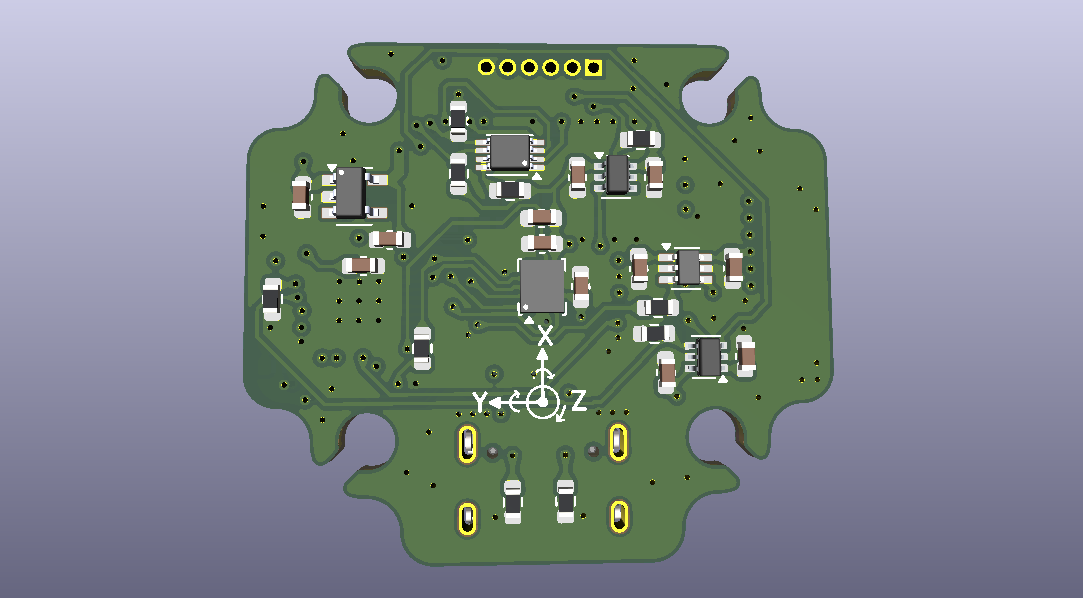
These views are useful for checking connector placement, component orientation, and available space before manufacturing.
The original PCB design is by RemiFM. For this project, I used that hardware as the starting point for the firmware improvements.
Step 3: PCB Manufacturing and Assembly with NextPCB
Before ordering the PCB, I reviewed the KiCad design, component footprints, and manufacturing files. It’s important to check the ERC/DRC results, six-layer stack-up, USB routing, and I3C connections before fabrication.
After preparing the Gerber files and BOM, I sent them to HQ NextPCB for manufacturing and assembly.
I chose a white solder mask with black silkscreen, which gives the small LiDAR board a clean look.
I’ve been working with NextPCB for almost four years, and they’ve supported and sponsored several of my hardware projects. Their team has always been helpful with custom PCB manufacturing and assembly.
For this board, I chose professional assembly because the VL53L9CX and STM32 have very small pads, making accurate placement important.
The assembled boards arrived within a week, and I was happy with the manufacturing quality.
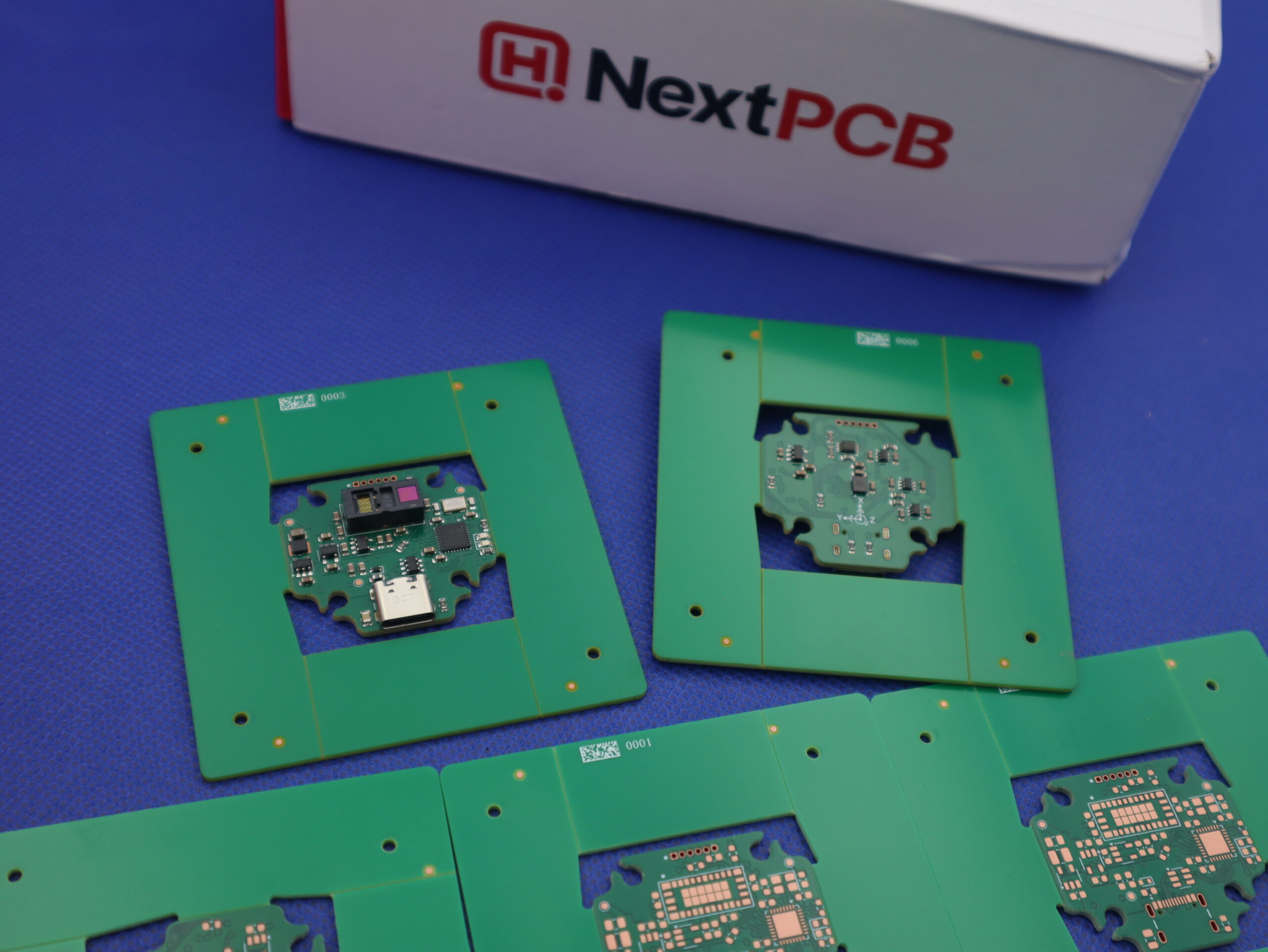
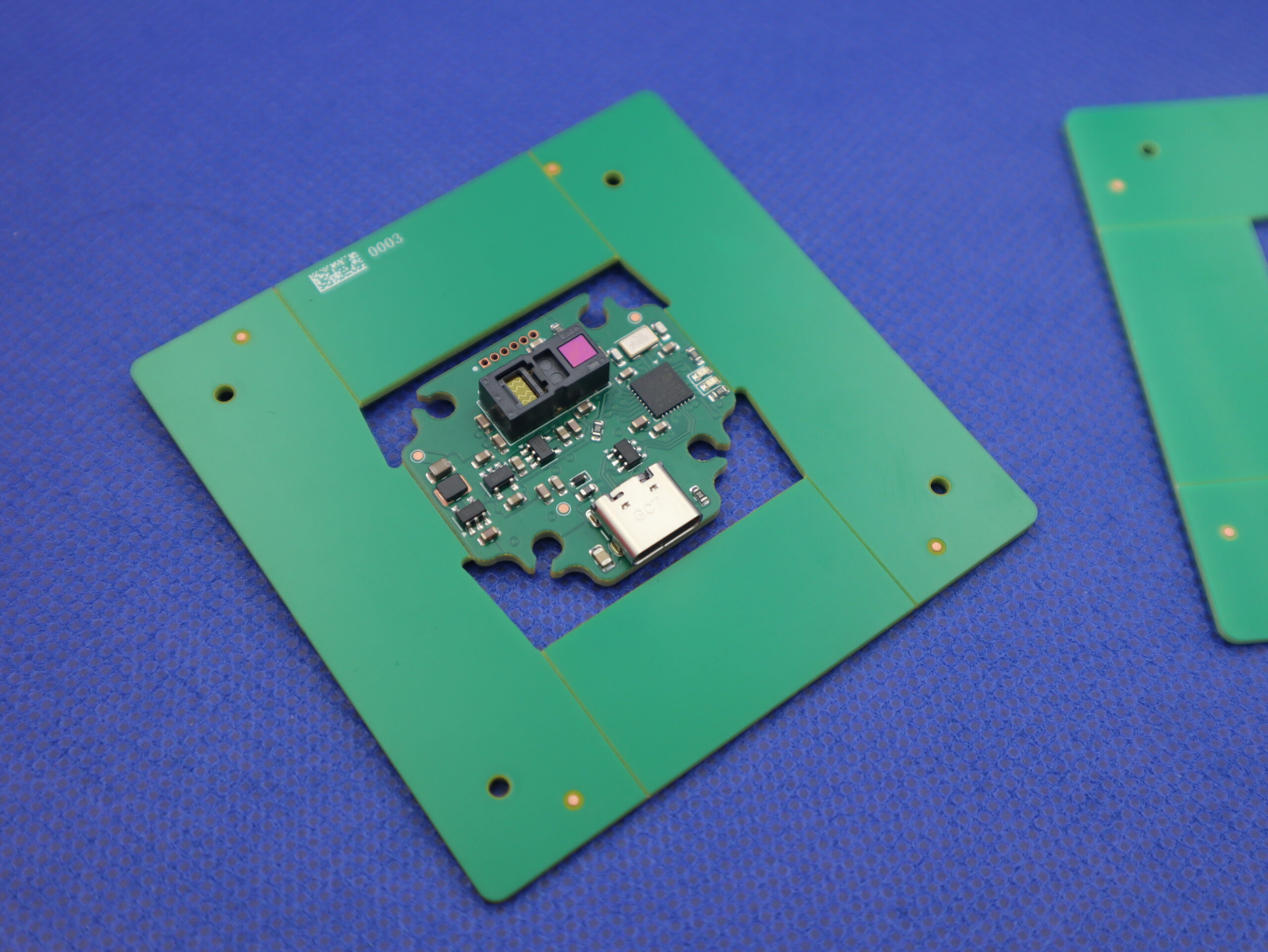
I also used NextPCB’s free HQDFM tool to inspect the Gerber files and check for potential manufacturing issues.
Before powering up the board, I checked the component orientation, solder joints, and power rails using a multimeter.
Since the VL53L9CX is an optical sensor, it’s also important to keep its optical area clean during assembly. This version doesn’t use protective cover glass.
Step 4: Preparing the STM32 Firmware
Now it’s time to prepare the firmware for the STM32C552 microcontroller on the LiDAR PCB.
The project includes precompiled firmware, so there’s no need to build everything from scratch if you’re using the same hardware.
You’ll find these files in the firmware/build/ folder:
| File | Purpose |
|---|---|
usb-lidar-sensors.hex | Firmware image with flash addresses |
usb-lidar-sensors.bin | Raw firmware image |
usb-lidar-sensors.elf | Used for debugging |
You can find the precompiled firmware and complete source code in my GitHub repository. Make sure to use the firmware intended for the STM32C552 on the LiDAR PCB.
I recommend starting with the supplied firmware and experimenting with the source code later.
Connecting ST-Link
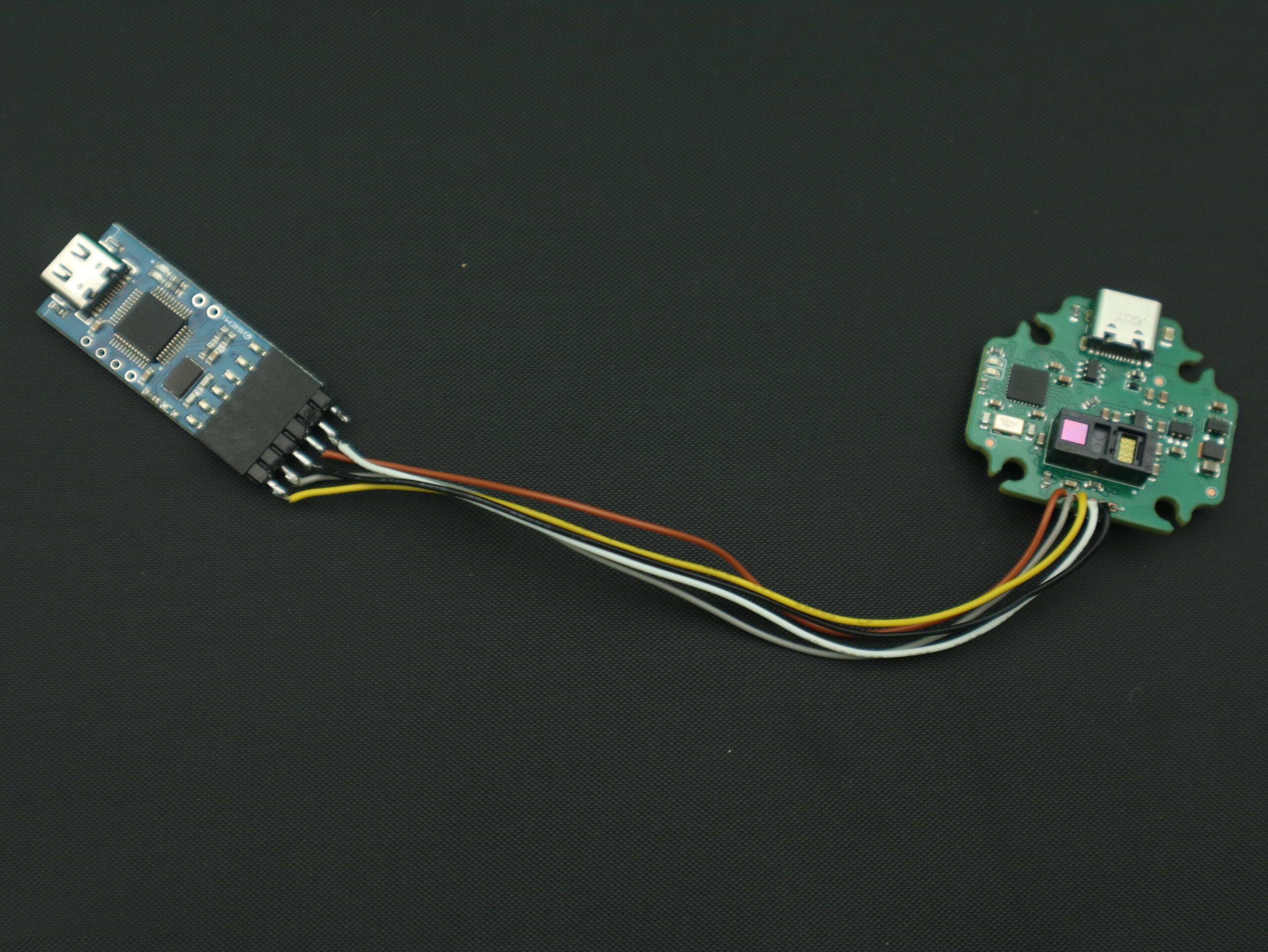
The board includes an SWD programming footprint at J3, using a 1.27 mm pitch.
| Pin | Signal |
|---|---|
| 1 | 3.3 V (VTref) |
| 2 | SWDIO |
| 3 | SWCLK |
| 4 | SWO (optional) |
| 5 | NRST |
| 6 | GND |
Make sure the connector orientation is correct. The 3.3 V pin is only a reference for the programmer, not another power input.
Step 5: Flashing and Verifying the Firmware
For flashing, the project includes a tested Linux ST-Link helper that programs and verifies the firmware.
First, power the LiDAR board through USB and connect the ST-Link programmer.
From the project directory on your Linux computer, create a Python environment and install the flashing dependency:
1 2 | python3 -m venv .venv .venv/bin/python -m pip install pyocd==0.46.0 |
Now flash the firmware:
1 2 3 | .venv/bin/python firmware/tools/flash-stlink.py \ firmware/build/usb-lidar-sensors.bin \ --backup before-flash.bin |
The helper backs up the existing firmware, programs the new image, verifies it, and resets the STM32.
Use a new backup filename if before-flash.bin already exists.
You can also use STM32CubeProgrammer if you prefer a graphical interface. Connect over ST-Link, select usb-lidar-sensors.hex, enable verification, and program the board.
After flashing, the LiDAR PCB should appear as a USB CDC serial device when connected to a computer.
Important: This firmware is only for the STM32C552 on the LiDAR PCB, not the STM32U585 inside the Arduino UNO Q.
Step 6: Installing the Dashboard on Arduino UNO Q
With the firmware ready, it’s time to set up the native LiDAR Dashboard on Arduino UNO Q.
The project includes a tested dashboard package and Python dependencies for the UNO Q, so there’s no need to rebuild everything when using the supplied deployment files.
First, connect the UNO Q and your Linux laptop to the same network.
Copying the Dashboard Files
On your Linux laptop, open the project directory and create the installation folders on UNO Q:
1 2 | ssh arduino@192.168.1.21 \ 'df -h "$HOME"; mkdir -p ~/lidar-dashboard ~/lidar-python' |
Next, copy the dashboard and its dependencies:
1 2 3 4 5 | scp -r uno-q/lidar-dashboard/. \ arduino@192.168.1.21:lidar-dashboard/ scp -r uno-q/lidar-python/. \ arduino@192.168.1.21:lidar-python/ |
Replace 192.168.1.21 with your UNO Q’s IP address.
The application is installed in:
/home/arduino/lidar-dashboard/— Native dashboard and launcher/home/arduino/lidar-python/— Python dependencies
These directories remain available after rebooting.
Checking the Dependencies
Before launching the application, verify that the Python dependencies are available.
Run this from the Linux laptop:
1 2 | ssh arduino@192.168.1.21 \ 'PYTHONPATH=$HOME/lidar-python python3 -B -c "import serial,numpy,gi,cairo,OpenGL; print(\"Dependencies ready\")"' |
If everything is installed correctly, you should see:
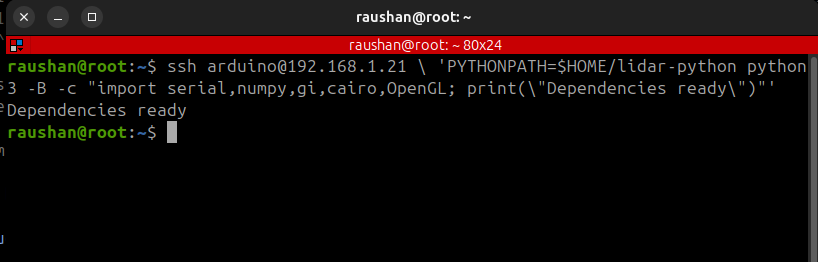
1 | Dependencies ready |
The supplied UNO Q package includes the matching native processing library. The laptop’s x86 library cannot be used directly on the UNO Q’s ARM-based Linux system.
Step 7: Connecting the LiDAR PCB to Arduino UNO Q
Now it’s time to connect the hardware.
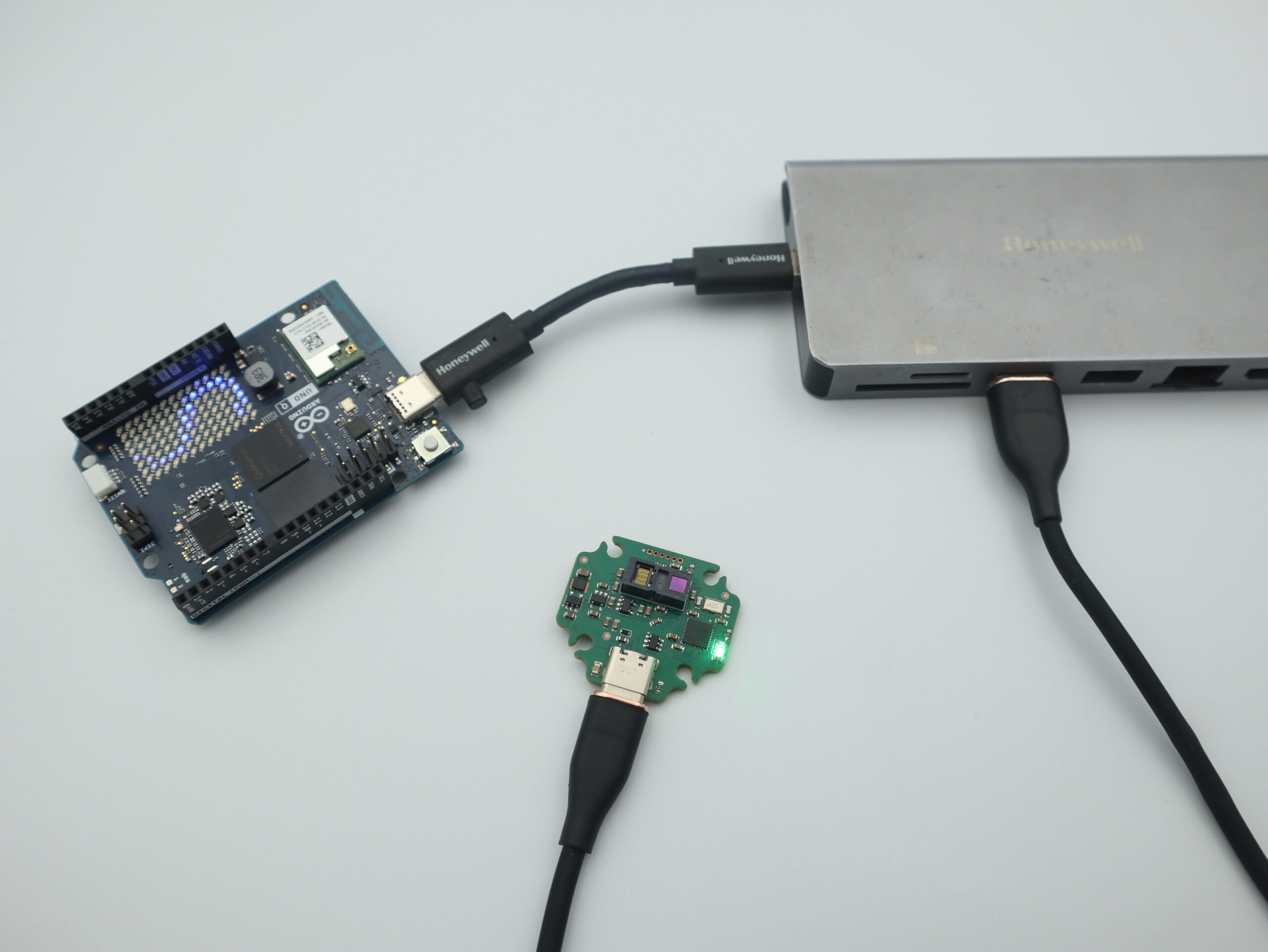
I connected the VL53L9CX LiDAR PCB to the Arduino UNO Q using a powered USB-C hub.
Make sure the hub supports the UNO Q’s USB host mode and power requirements.
Checking the USB Connection
Open a terminal on the UNO Q and run:
1 2 3 | cat /sys/class/usb_role/*/role lsusb ls -l /dev/serial/by-id/*VL53L9* |
The LiDAR board should appear as a USB CDC device. On the tested setup, its stable device name contained USB_LiDAR_VL53L9_Full_Raw, and it appeared as /dev/ttyACM1.
The ACM number can change after reconnecting the device.
Fixing USB Host Mode
One issue I encountered was that the UNO Q sometimes rebooted into USB device mode, preventing it from detecting the LiDAR board.
On the tested Linux image, I used this command to switch it back to host mode:
1 2 3 4 | echo host | sudo tee /sys/class/usb_role/4e00000.usb-role-switch/role sleep 3 lsusb ls -l /dev/serial/by-id/*VL53L9* |
This path is specific to the tested UNO Q Linux image. Check the available USB role-switch paths before using it on another version.
The change is temporary and may need to be repeated after reboot. Use a network-based SSH connection when changing USB roles because switching modes can interrupt USB connections.
Once the LiDAR appears in the device list, the hardware connection is ready.
Step 8: Launching the LiDAR Dashboard Through VNC
With the sensor connected and the software installed, we can finally open the dashboard.
For this project, I’m using the UNO Q’s VNC desktop to run the native application directly.
Open a terminal inside the UNO Q’s VNC desktop and run:
1 | ~/lidar-dashboard/run_gui.sh |
The launcher uses display :1 by default. If your VNC desktop uses display :2, run:
1 | DISPLAY=:2 ~/lidar-dashboard/run_gui.sh |
The LiDAR Dashboard should now open as a native desktop application showing the live sensor data.
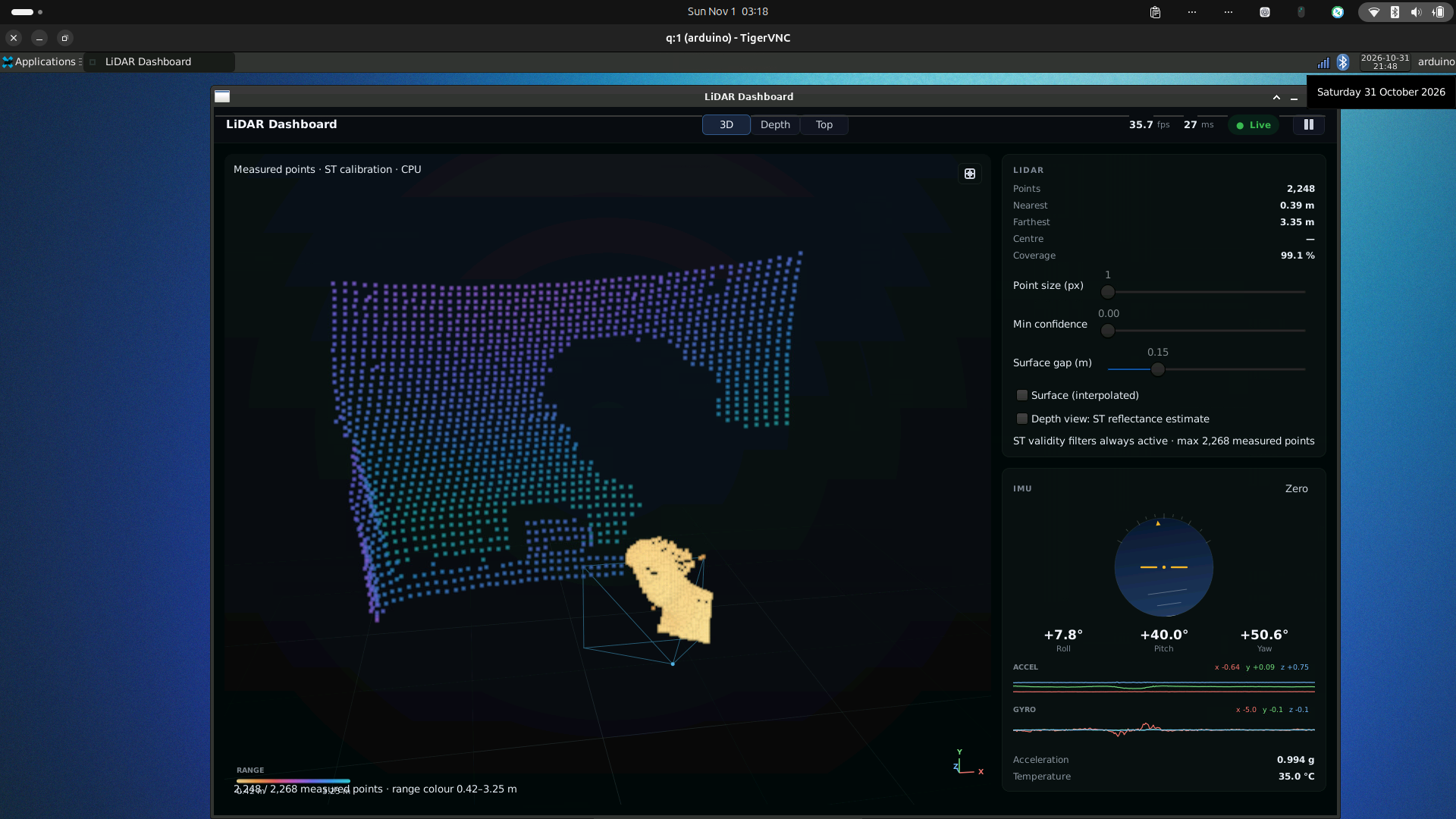
One interesting challenge was graphics rendering. OpenGL didn’t work properly through the UNO Q’s VNC desktop, so the application uses a CPU rendering fallback.
Optional: Running the Dashboard on a Laptop
For GPU-accelerated visualization, you can also run the native dashboard on a Linux laptop while keeping the LiDAR connected to the UNO Q.
After configuring SSH key authentication, run this from the project directory on your laptop:
1 | ./dashboard/view_remote.sh arduino@192.168.1.21 |
This starts the USB relay on the UNO Q, creates an SSH tunnel, and opens the native dashboard on the laptop.
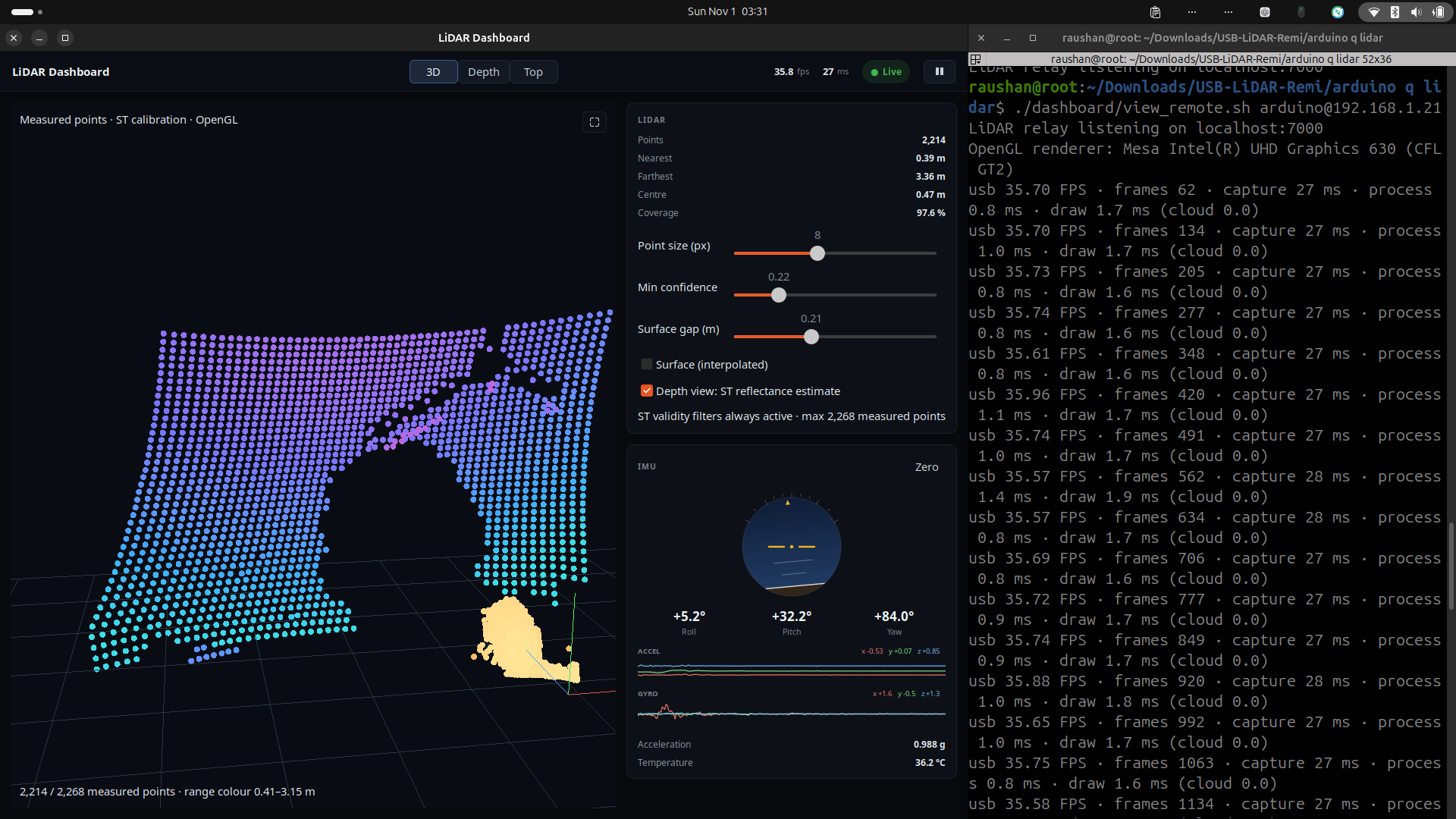
In this mode, the UNO Q relays the raw USB data, while ST processing and GPU visualization run on the laptop.
Only one viewer or sensor relay should use the LiDAR connection at a time.
Step 9: Exploring the LiDAR Dashboard
Now comes my favorite part of the project: seeing the LiDAR measurements turn into a live 3D point cloud!
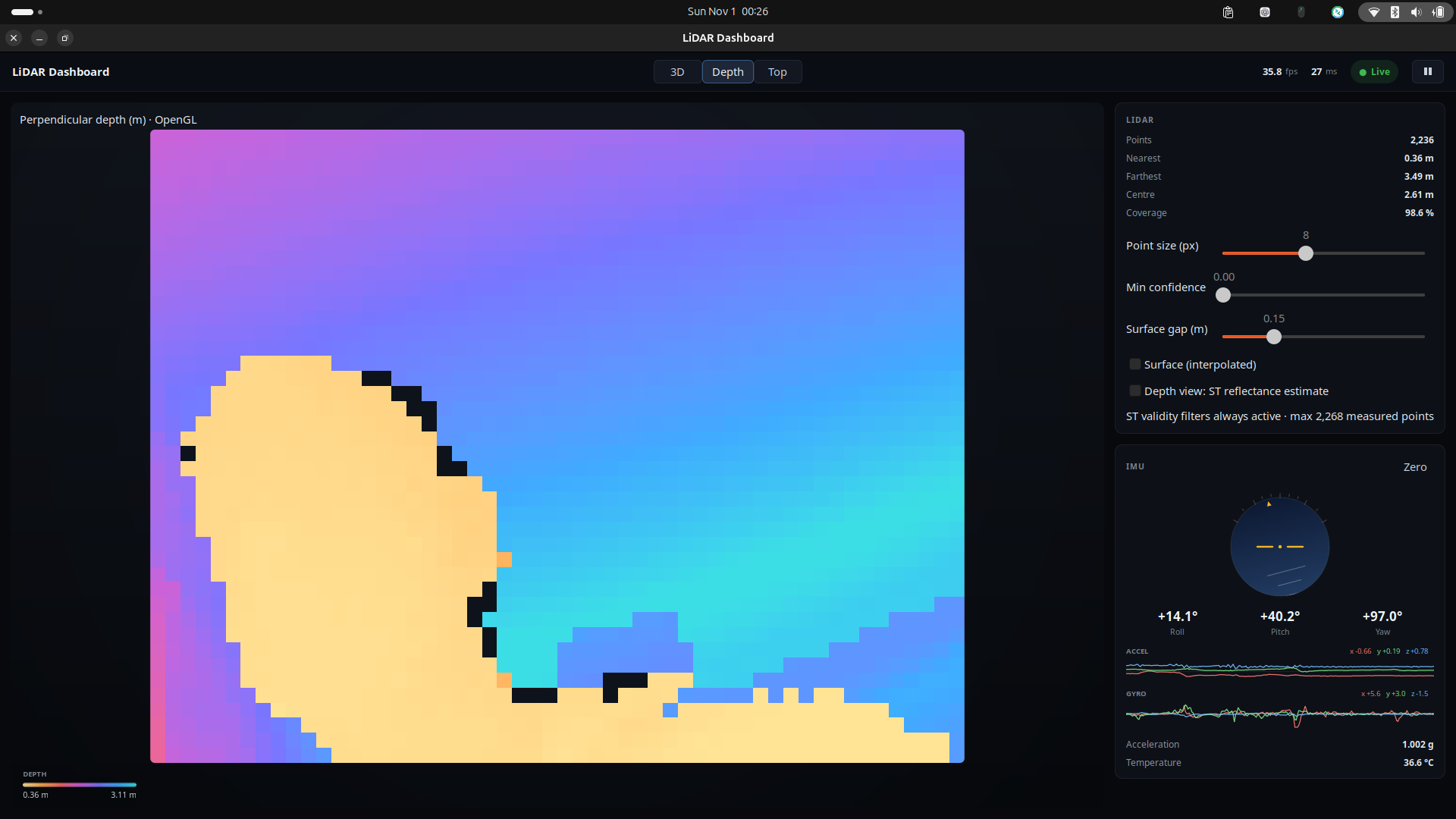
The dashboard has three main viewing modes:
| Mode | What it shows |
|---|---|
| 3D View | Interactive point cloud that can be rotated and zoomed |
| Depth View | 2D depth image from the 54 × 42 measurement grid |
| Top View | Bird’s-eye view of the detected objects |
The measurements are processed using ST’s calibration and postprocessing library before being displayed.
Point Cloud and Filtering
ST’s processing already rejects unreliable measurements. I also included an adjustable confidence cutoff that can remove additional low-confidence points.
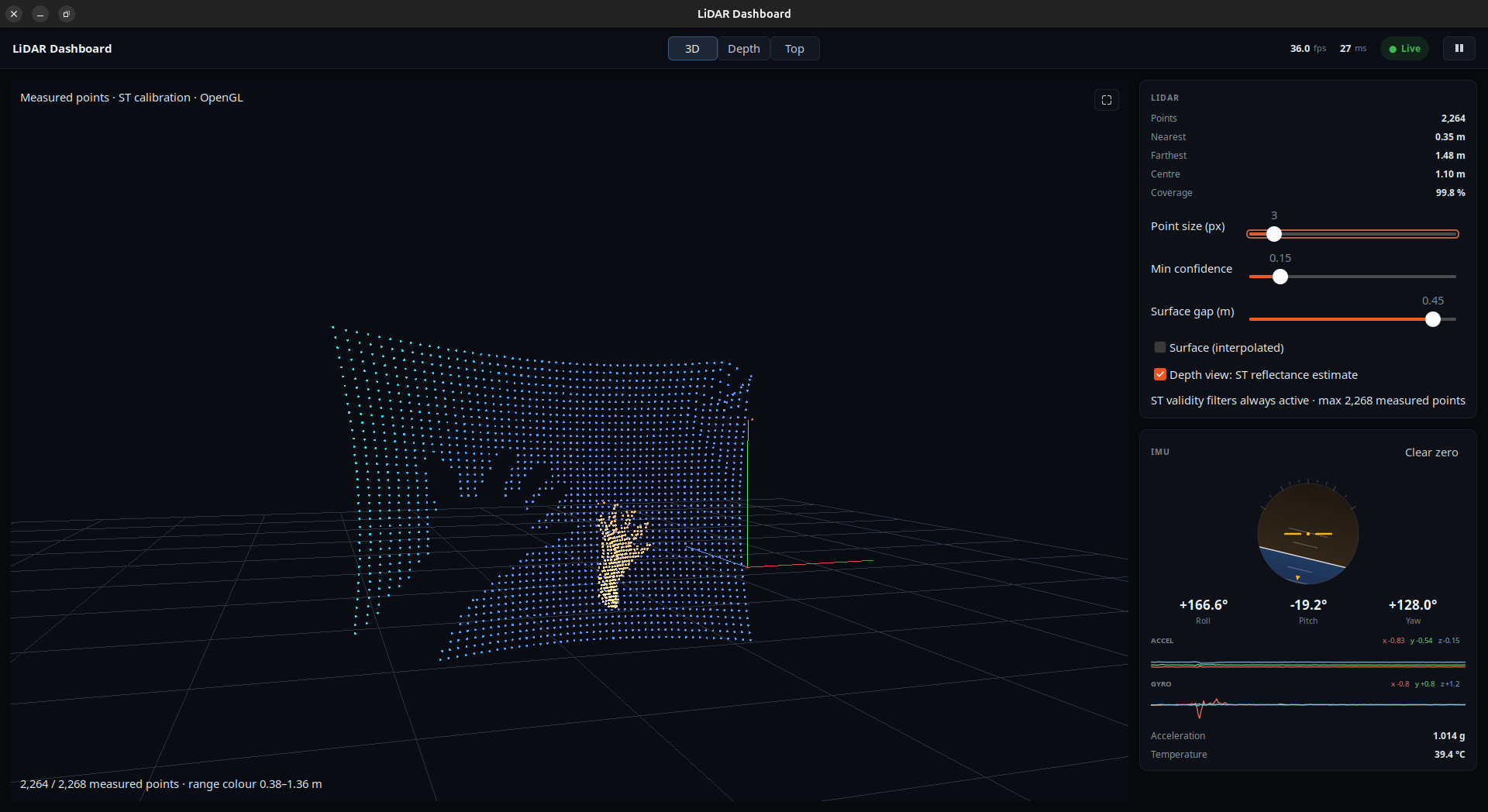
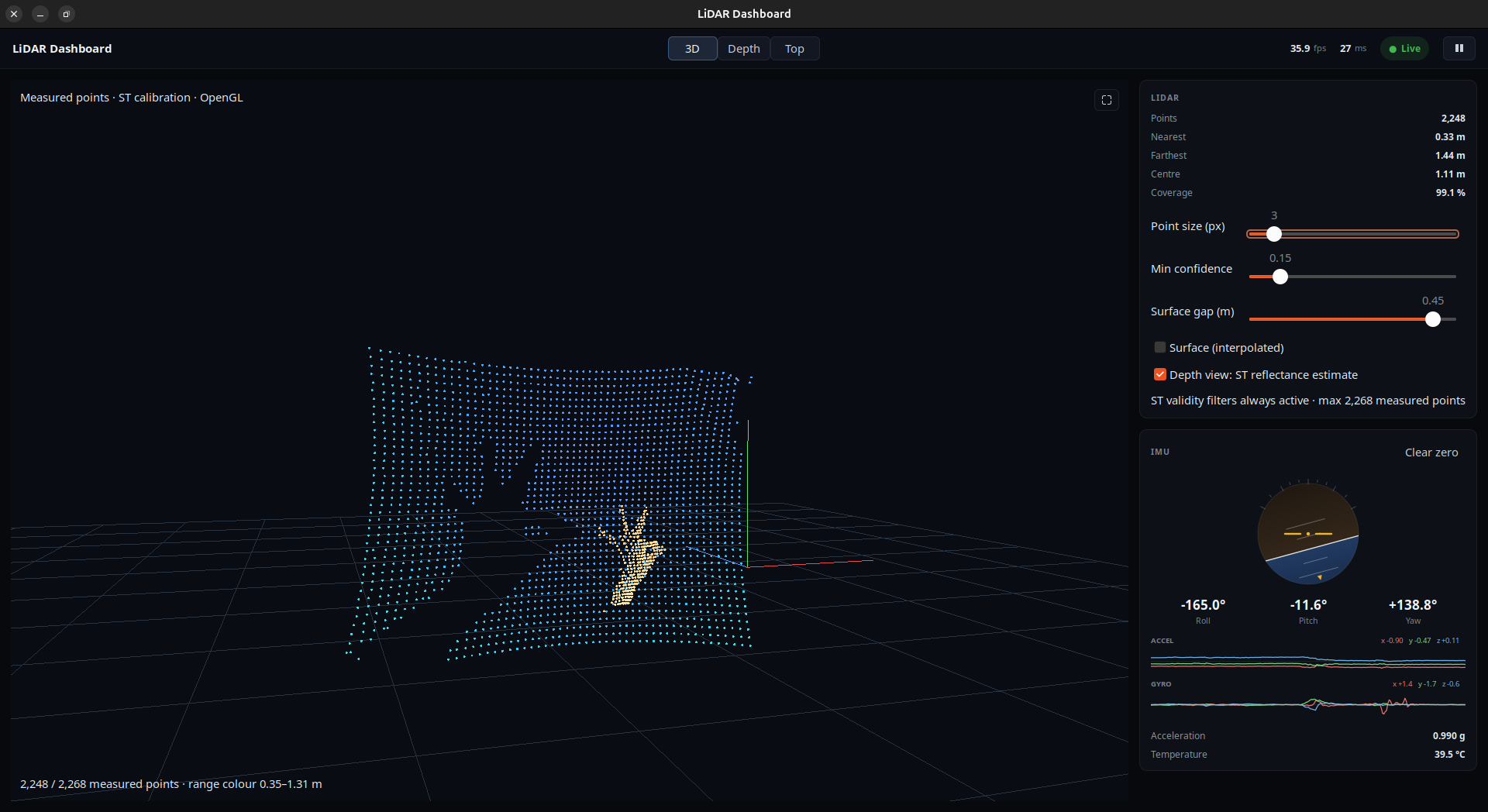
The point size control lets you change how large the points appear on screen, but it doesn’t increase the sensor’s physical resolution.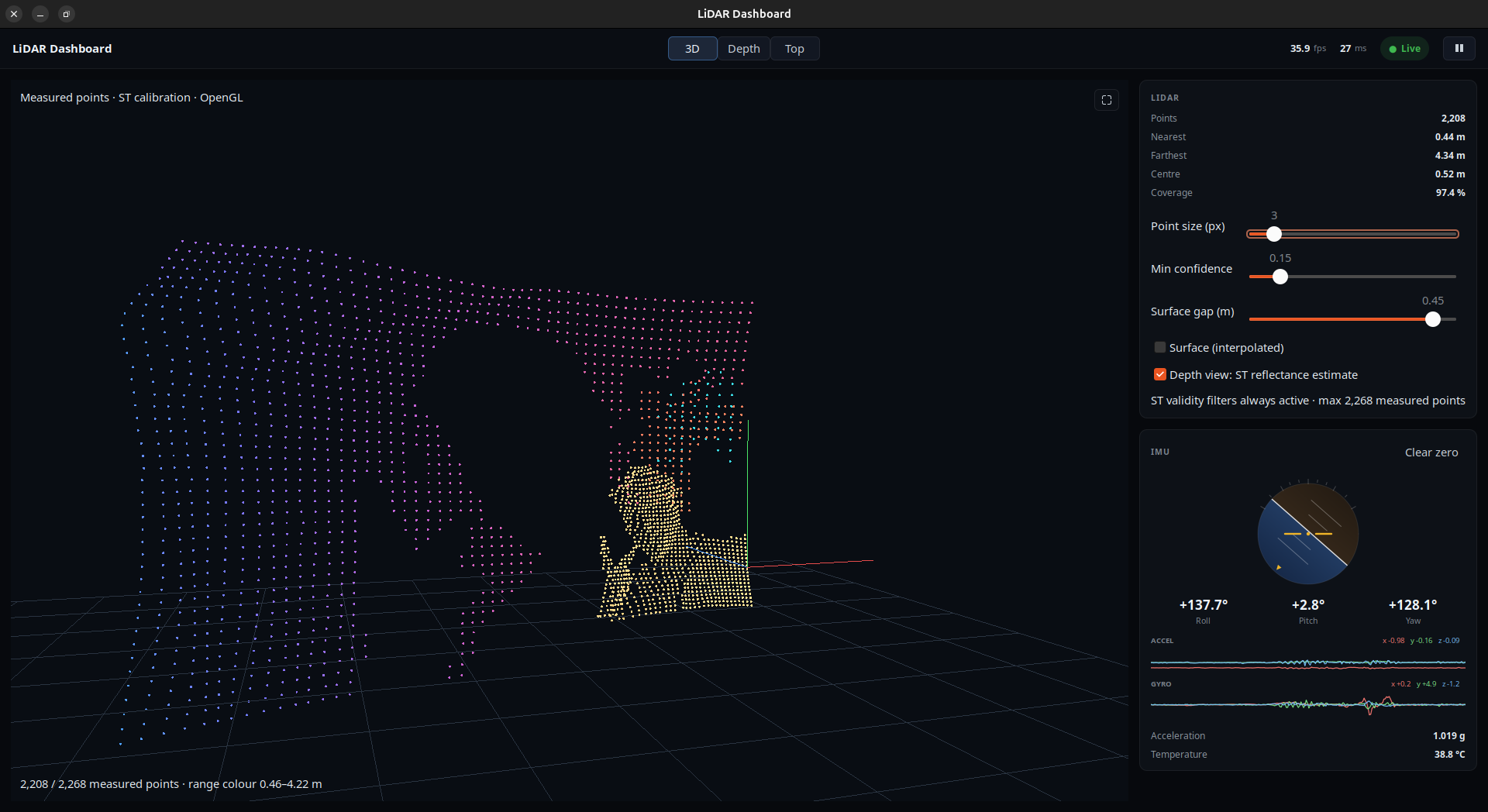
There’s also an optional interpolated surface mode, which connects neighboring valid measurements using triangles.
The triangle interiors are only for visualization; they aren’t additional measured points.
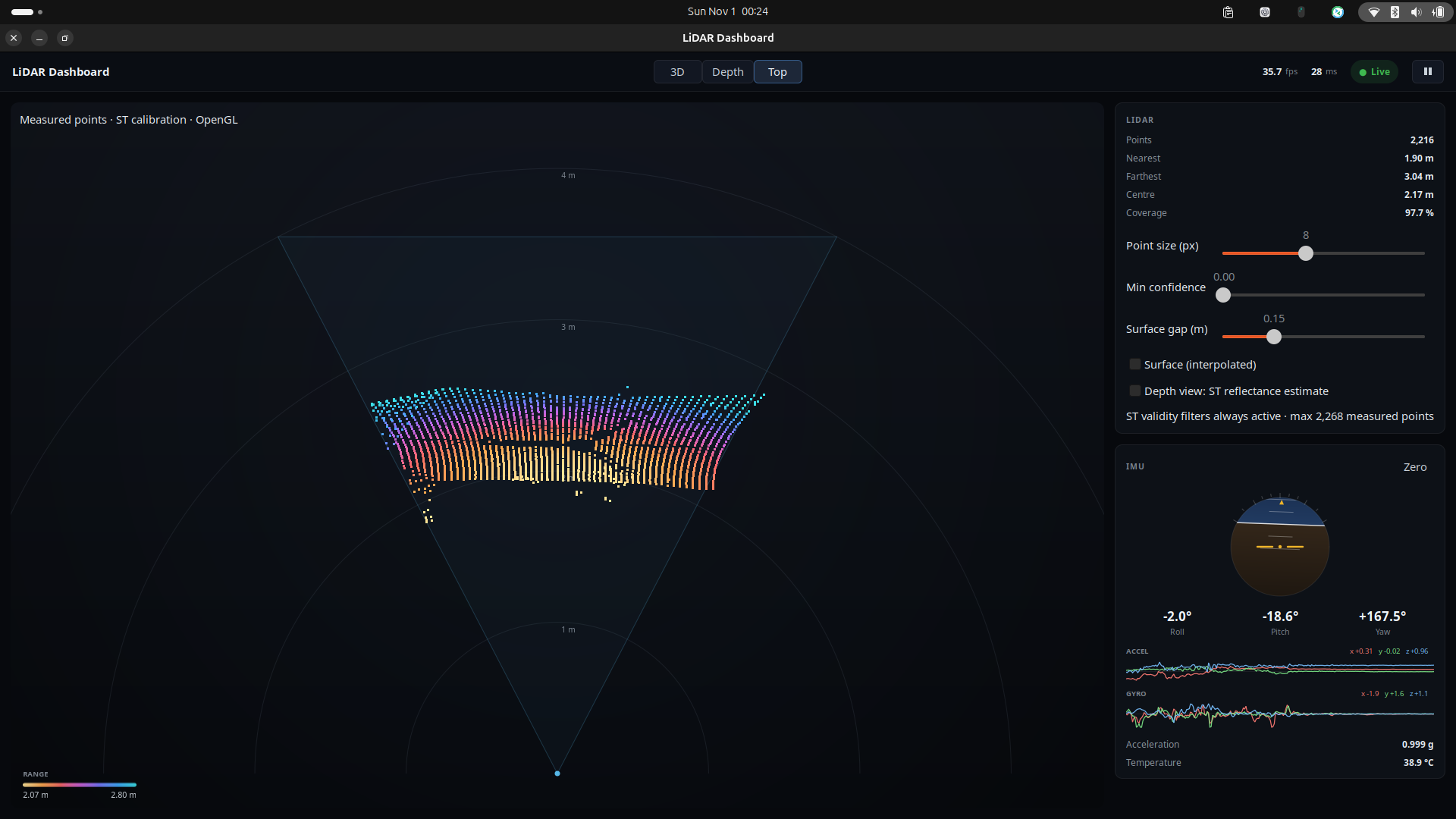
In Depth view, you can switch to ST’s reflectance estimate. This is a processed reflectance-related measurement, not raw amplitude or an independently calibrated material-reflectance measurement.
IMU Orientation
The dashboard also includes an IMU panel showing roll, pitch, yaw, acceleration, gyroscope readings, and temperature.
The Zero button resets the displayed orientation reference.
One thing to keep in mind is that the IMU doesn’t have a magnetometer, so yaw can drift over time. The system tracks relative orientation, but it doesn’t perform SLAM or track the board’s position as it moves around a room.
Step 10: Final Testing and Working Demonstration
And finally, everything is working together!
For my first test, I placed a few objects in front of the LiDAR sensor and moved them around.
Their shapes appeared in the 3D point cloud, and I could see the measured distances changing in real time.
Switching between the 3D, Depth, and Top views made it much easier to understand what the sensor was detecting.
How Well Does It Work?
During a short live test on the Arduino UNO Q’s VNC desktop, the dashboard received approximately 35.7 frames per second using CPU rendering.
This is the received sensor-frame rate, not the screen refresh rate or total end-to-end latency.
The software also passed 54 automated regression tests. Separate hardware tests verified pause/resume, reconnection after a forced disconnect, and rejection of a second simultaneous viewer.
The optional laptop GPU viewer also received approximately 35–36 FPS in the tested setup.
These measurements are from the tested configuration. They shouldn’t be confused with the VL53L9CX’s maximum specified frame rate of 100 Hz.
Conclusion
This has been a really interesting project because it brings together STM32 firmware, high-speed I3C communication, USB data transfer, Arduino UNO Q, Linux processing, and 3D visualization.
There are still a few things I’d like to explore, especially measuring distance accuracy against known targets and experimenting with robotics applications.
For now, I’m happy with how the LiDAR board and dashboard are working together. It’s satisfying to move an object in front of such a small sensor and see its shape appear in 3D.
I’ve included the PCB design files, firmware, native dashboard source code, and UNO Q setup instructions so anyone interested can experiment with the project and build their own version.